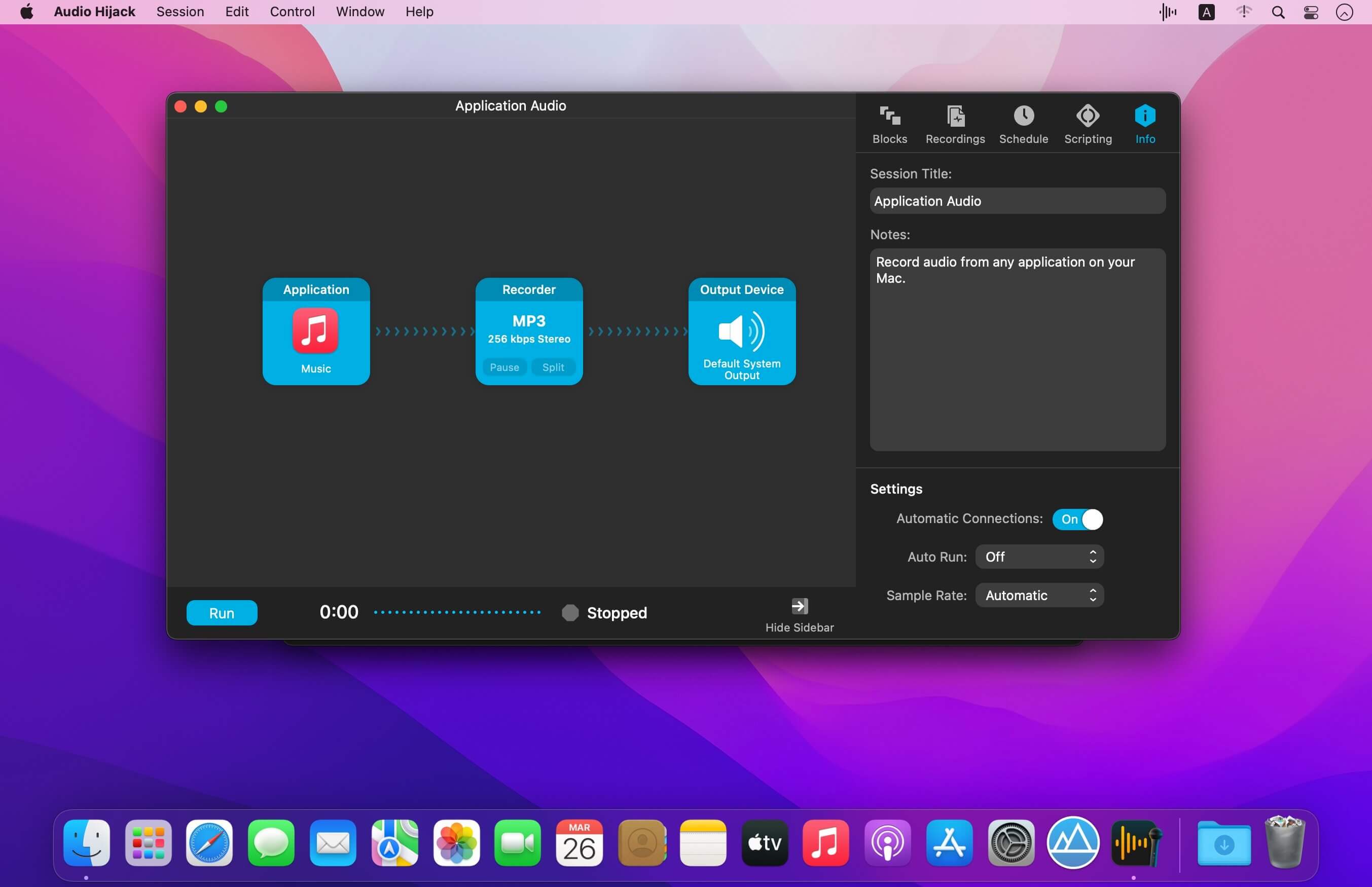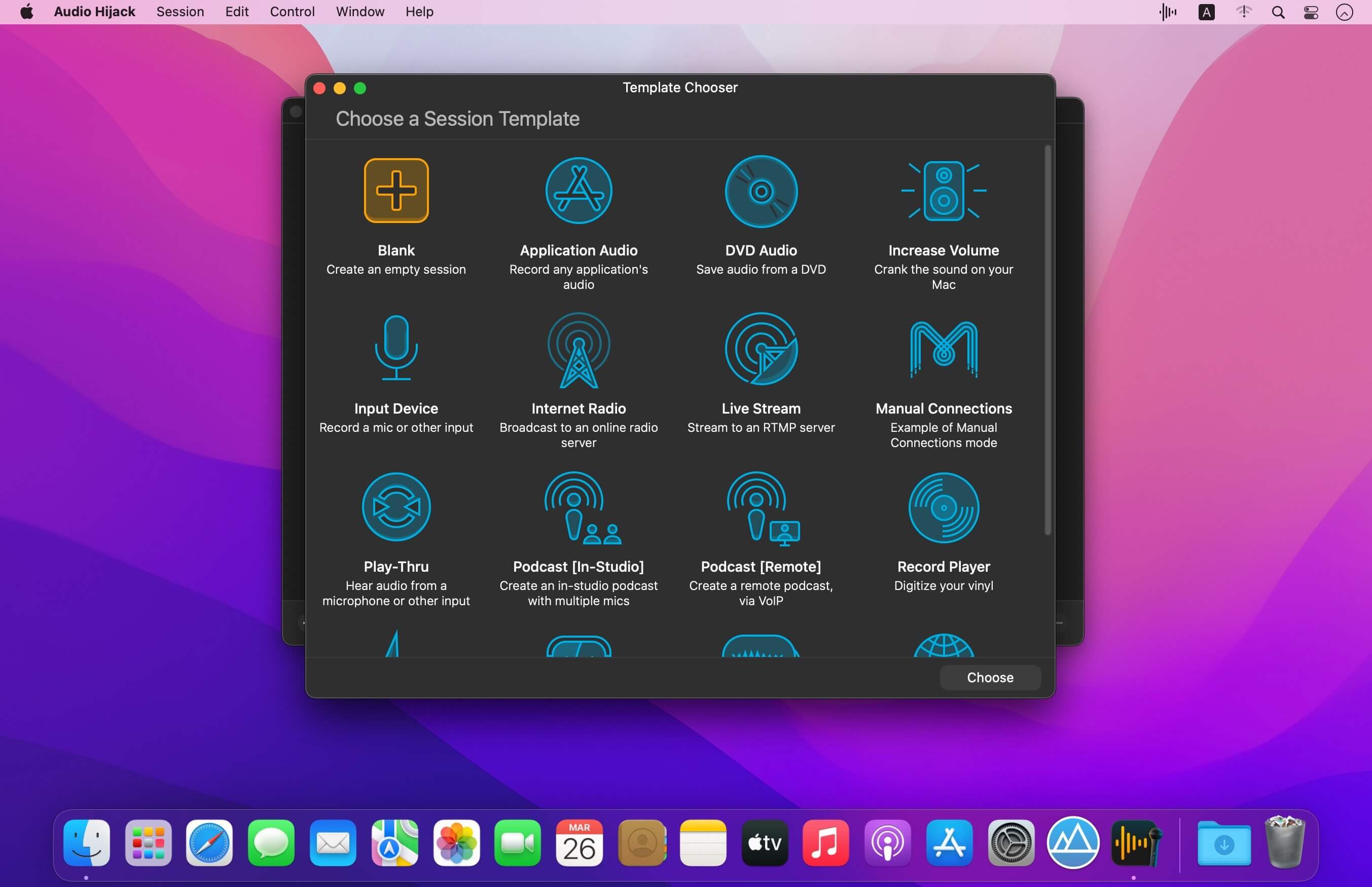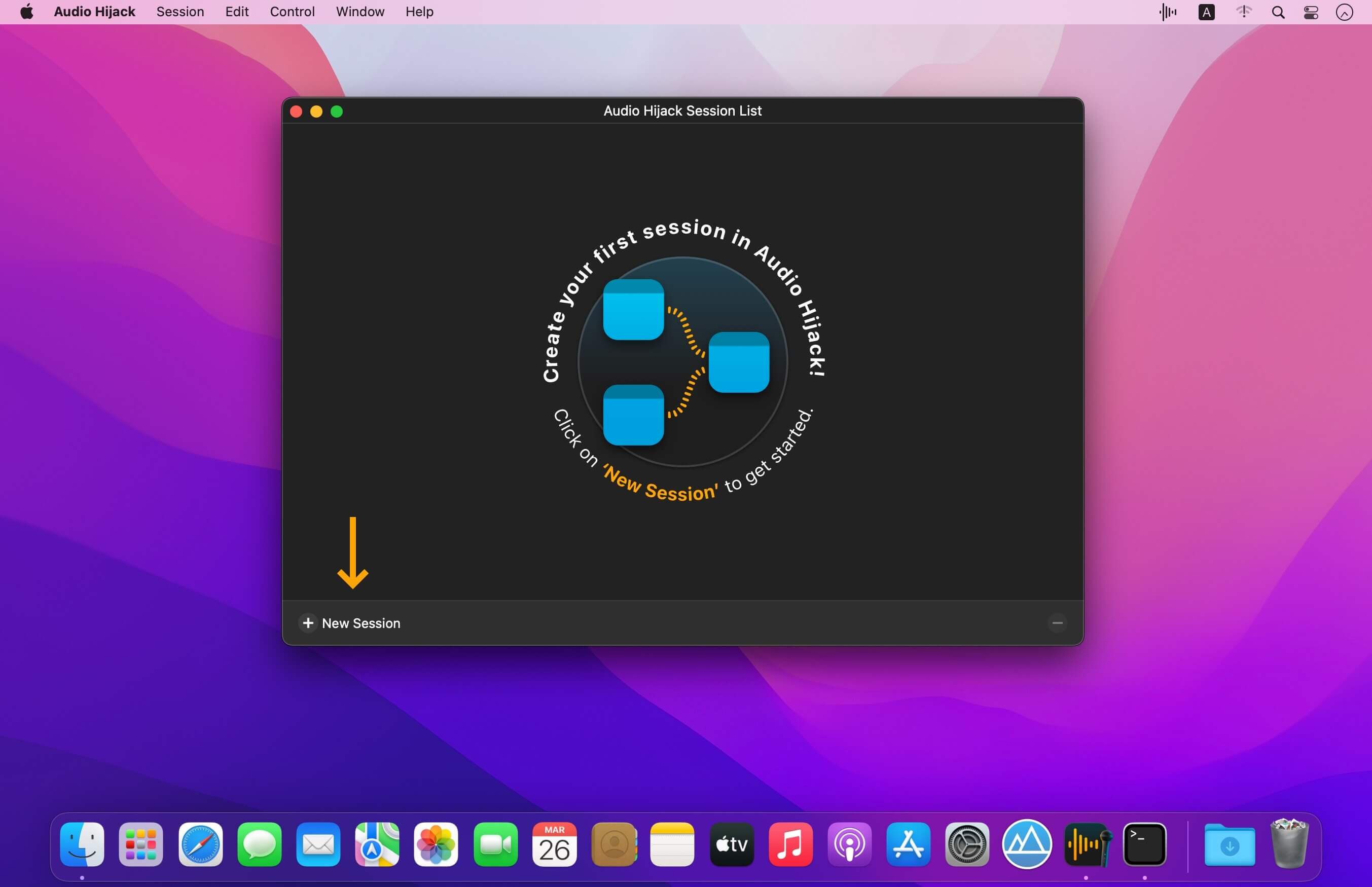
If you can hear it, you can record it – Record any application’s audio, including VoIP calls from Skype, web streams from Safari, and much more. Save audio from hardware devices like microphones and mixers as well. You can even record all the audio heard on your Mac at once! If you can hear it, Audio Hijack can record it.
Application Audio
Set any application as your source in Audio Hijack, then hit the record button to save its audio!
Device Audio
Audio Hijack can also capture and record audio from microphones, mixers, and other input devices.
All System Audio
Use the System Audio source to capture all the audio heard on your Mac at once.
More Great Features
Record to All Major Formats
Record to the world’s most popular audio formats, including MP3 and AAC, or save in perfect-fidelity AIFF, WAV, ALAC or FLAC.
Reusable Sessions
Once you’ve configured a Session to your liking, you can re-use it over and over. With one click, you’ll be recording exactly as desired.
Easy File Organization
Find all of your recordings sorted by Session in the Recordings tab, where you can quickly pass files to an audio editor, add them to iTunes, or share them.
Timed Recordings
Use the Schedule tab to set up timed recordings for when you’re not around. Your audio will be waiting for you when you return.
Silence Monitoring
When silence is detected, Audio Hijack can automatically stop recording, split to a new file, or remove audio.
Bulletproof Recording
Bulletproof recording means that even if the power goes out or your computer crashes, you’ll never lose a recording.
A Thoughtful Interface
Audio Hijack’s intuitive audio grid provides a terrific pipeline-style view of exactly how your audio flows, so you can easily understand it.
Gorgeous Audio Effects
The included audio effects are easy to use and easy on the eyes. Their functionality is now accessible to all.
Time Shift Your Audio
Now you can pause, delay, and rewind live audio on your Mac. It’s perfect for transcribing audio and more!
What’s New:
Audio Hijack 4.0.2
- Importing Improvements for Sessions With Many Recordings
- Audio Hijack 3 sessions with many recordings could previously be slow to import to Audio Hijack 4, or fail to import at all. This has been corrected.
- If necessary, use the “Import Audio Hijack 3 Sessions” menu item in the “Help” menu to re-trigger importing.
- Audio Unit Presets Now Properly Import From Audio Hijack 3
- Presets saved for Audio Units in Audio Hijack 3 will now properly import into Audio Hijack 4.0.2 and up. This will happen automatically, with no user intervention necessary.
- When the selected device for an “Input Device” or “Output Device” block is missing, a useful visual will now be shown on the block face.
- Scripting: Audio Hijack’s console.log() now also copies all messages to MacOS’s Console.app, for easy viewing.
- The tab key now correctly navigates between fields in the “Recording Inspector” window.
- A rare issue where pipelines could change slightly when imported from Audio Hijack 3 has been corrected.
- A rare issue where certain Audio Hijack 3 sessions could import into Audio Hijack 4 without a name has been corrected.
- The interface will now always update when starting a session via a script.
Screenshots: